

ROOT Access Control
Each AI agent settings sub-tab has a “ROOT Access Control” toggle. Lets you time-bound grant this agent host root access. System auto-revokes when expired.
Defaults: OC-1 enabled 72 hours by default; OC-2 / HM-3 disabled.
Where to find
OC-1 (or OC-2, HM-3) tab → Settings sub-tab → ROOT Access Control section
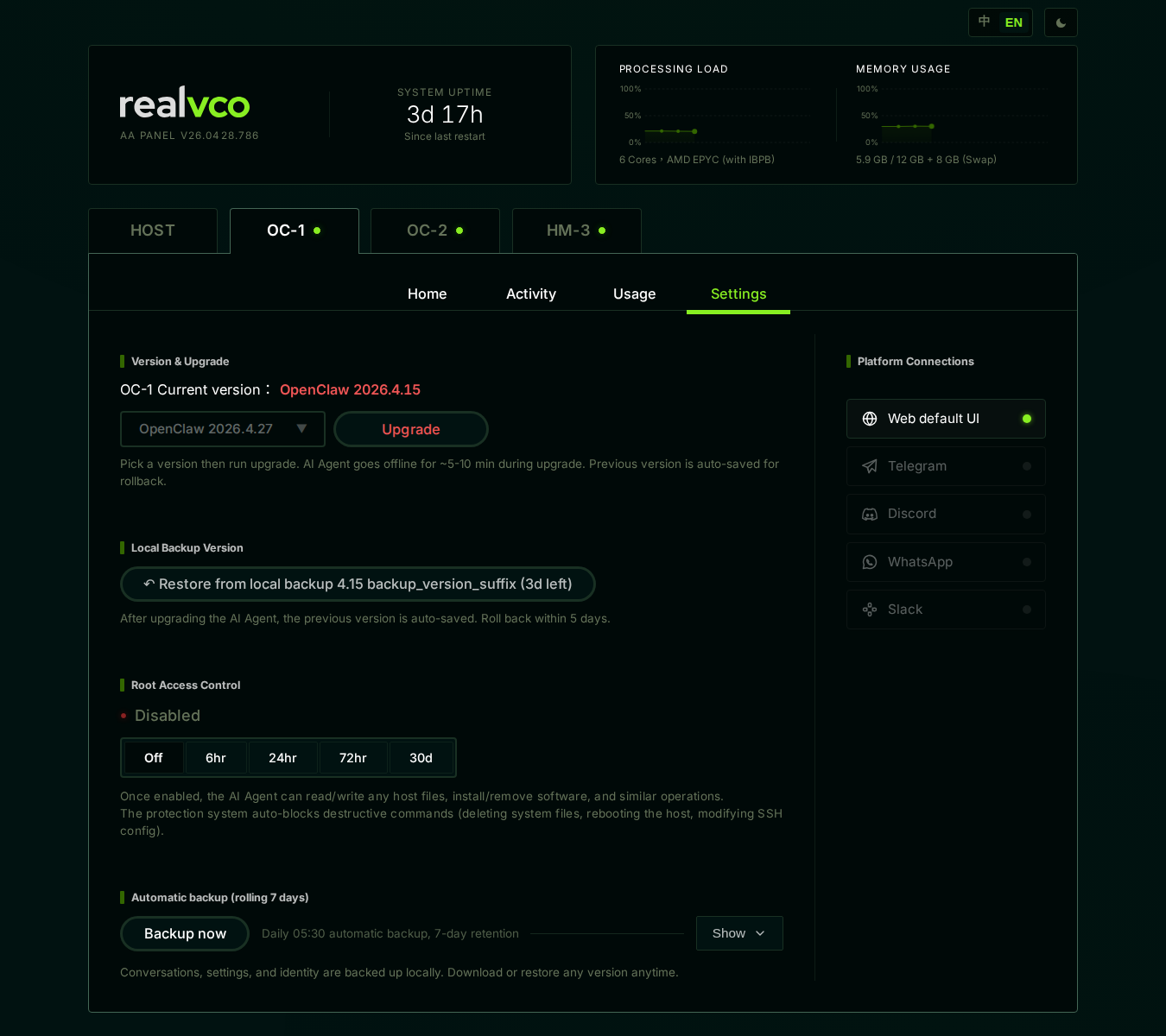
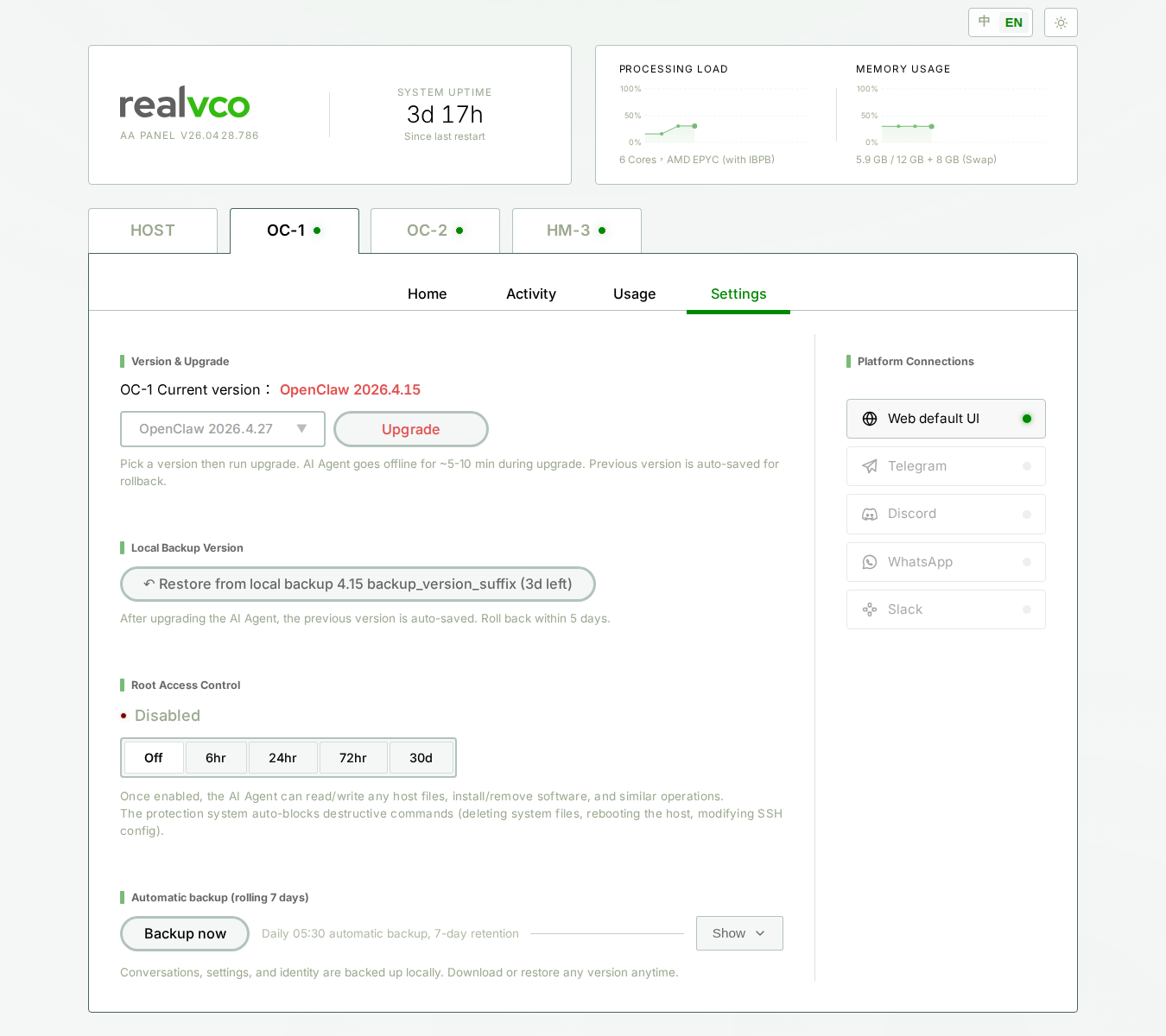
You’ll see:
| Element | Meaning |
|---|---|
| Red dot + Disabled / Enabled | Current state indicator |
| 5 buttons: Off / 6hr / 24hr / 72hr / 30d | Click any → that duration takes effect |
| Description text | Explains post-enable safety behavior |
What each option means
| Button | Meaning | Best for |
|---|---|---|
| Off | Off, back to container isolation default | Don’t need host access |
| 6hr | Enabled 6 hours, auto-revoked on expiry | ”Need to fix a bug tonight, must be done by morning” |
| 24hr | Enabled 24 hours | ”Running data analysis or long task, may need overnight” |
| 72hr | Enabled 72 hours (3 days) | “Weekend wants to install new MCP server, want it cleaned up by Monday” |
| 30d | Enabled 30 days | ”Doing a project this month, need this agent for host operations all month” |
How to do it
Step 1: click your desired duration
E.g. want 6 hours → click 6hr.
Click is immediate (no confirmation dialog — it’s time-bounded and reversible, will auto-revoke).
Step 2: confirm state change
After clicking:
- Red dot’s Disabled changes to Enabled (X hours X min remaining)
- Countdown starts
Step 3: don’t have to manually disable
System auto-revokes on expiry, you don’t have to remember. Want to revoke early → click Off.
What happens when enabled
The instant you click a duration:
- The AI agent’s container immediately gets host read/write access
- Countdown starts (system checks every minute)
- When countdown hits zero → auto-revoke, back to container isolation
While enabled, this agent can:
- Read/write any host file
- Install/remove software
- Run system administration commands
⚠️ But disaster-level commands are still blocked:
- Delete system files
- Reboot host
- Modify SSH config
These are built-in, non-toggleable safety nets.
How to confirm ROOT is enabled
You’ll see 3 visual cues:
- AI agent tab title shows red
[ROOT]badge - Home sub-tab main view shows red text “Host Root access granted”
- Countdown timer displays remaining time
If you see ROOT badge but don’t remember enabling it, check audit log for history.
Common scenarios
| You want to… | Click |
|---|---|
| Let HM-3 run a one-time system maintenance script | 6hr |
| Let OC-2 cross-container debug for a day | 24hr |
| Weekend project needs OC-1 for host files | 72hr |
| Month-long project / long-term maintenance role | 30d |
| Done with task, want to revoke now | Off (don’t wait for expiry) |
Safety reminder
Granting ROOT means this AI container can touch anything on the host (except built-in disaster protection):
- Mistakes the AI makes while executing your commands have larger consequences
- If this container is compromised, the attacker also gets host access
- Understand this risk before granting; don’t keep it on long-term “for convenience”
Strongly recommend: before granting ROOT, create a host restore point. One-click rollback in case of issues.
Related
- Settings sub-tab overview — 5-section map
- Create Host Restore Point — Safety net before granting ROOT