

Host Info section
The first section in the HOST tab’s left column. 4 fields tell you the basic identity and health of this machine.
When you’ll use this: SSH into the machine, give the IP to someone else, check if storage is filling up.
Where to find
HOST tab → top-left → Host Info section
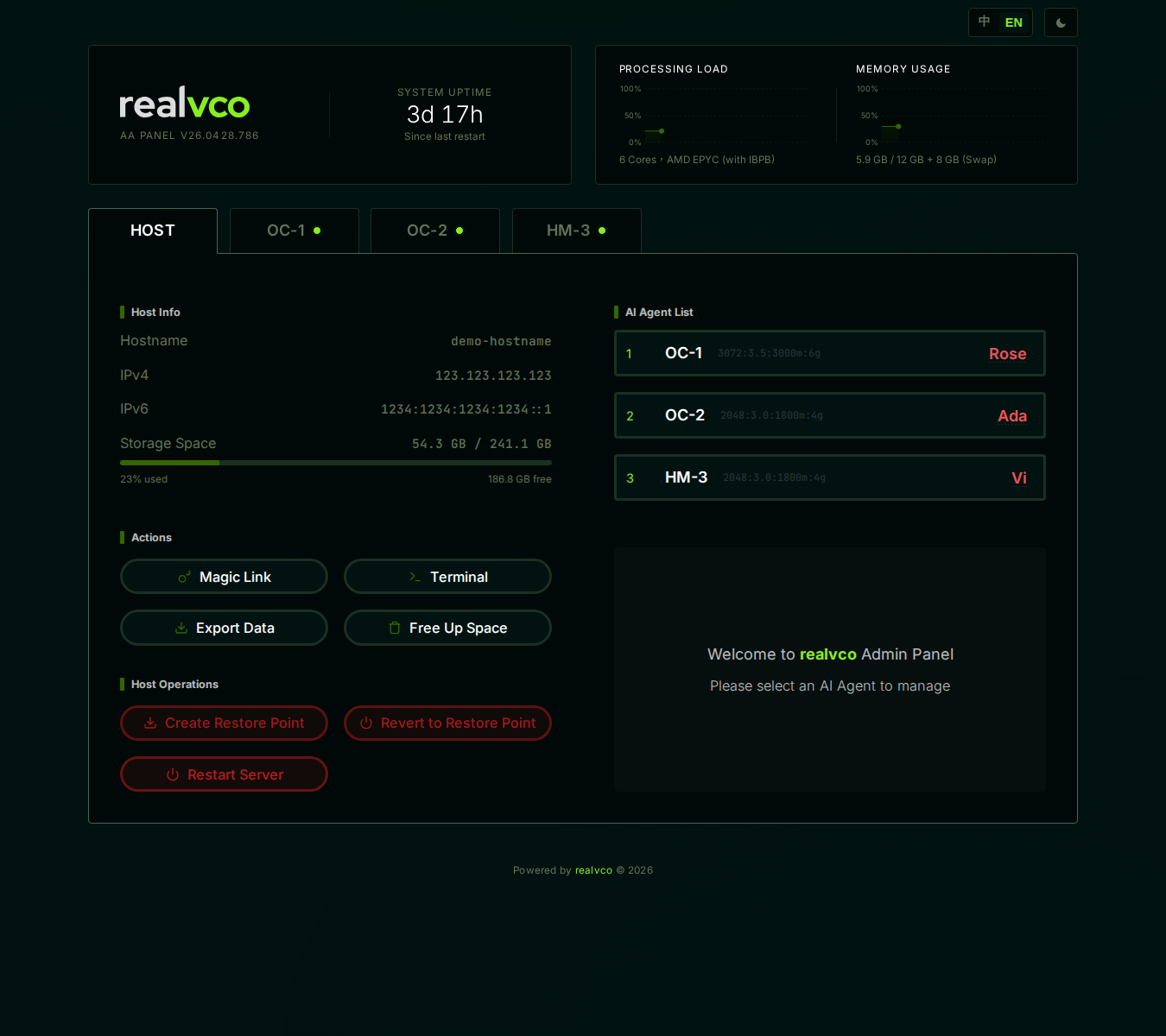
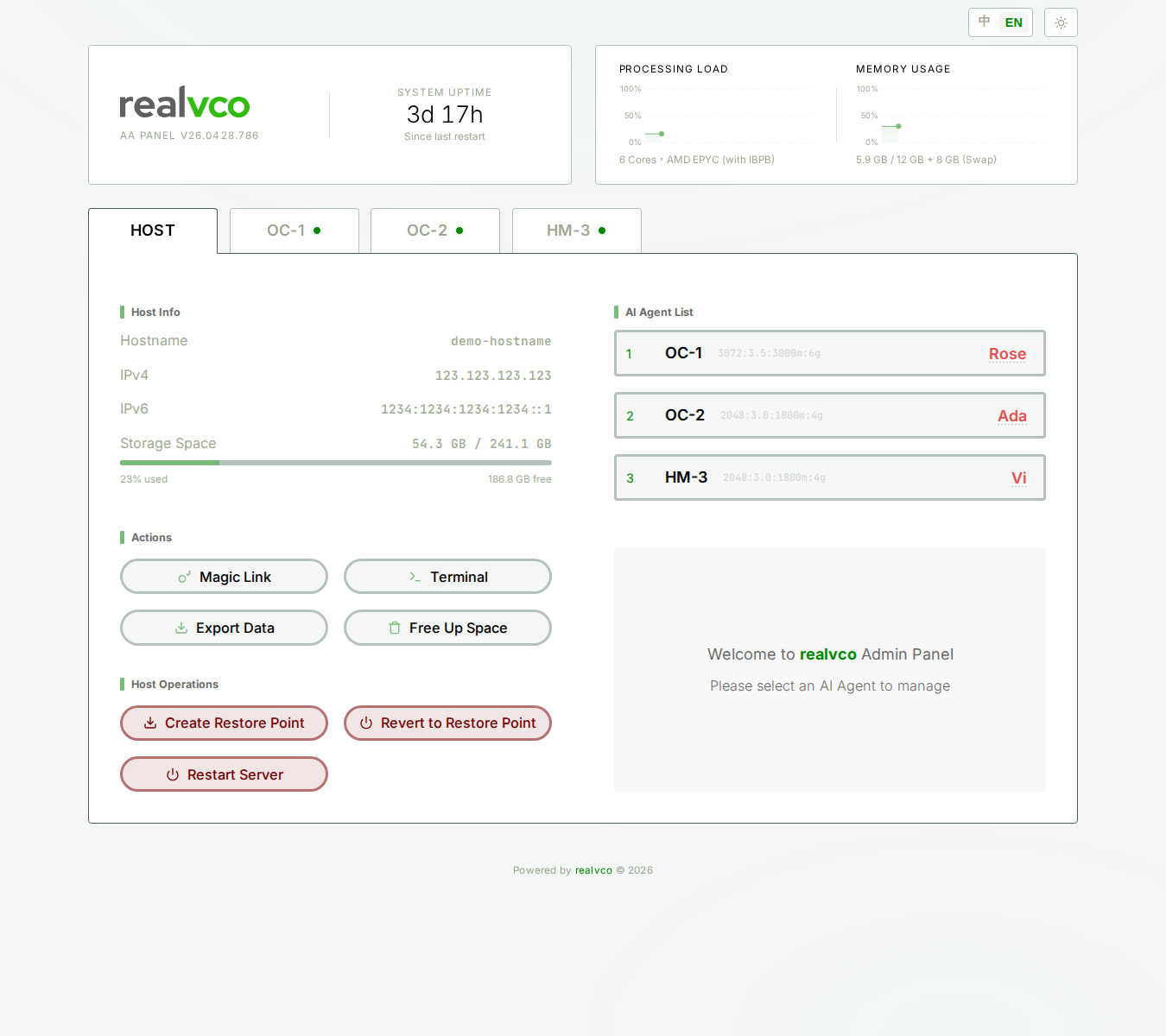
The 4 fields
| Field | Example | Meaning |
|---|---|---|
| Hostname | cattle42 or s10111svr | Machine hostname — for SSH |
| IPv4 | 123.123.123.123 | Public IPv4 — for firewall whitelist, DNS A record |
| IPv6 | 1234:1234:1234:1234::1 | Public IPv6 — for IPv6-only environments |
| Storage Space | 54.3 GB / 241.1 GB + progress bar + “23% used” “186.8 GB free” | Used / Total |
What to do when storage fills up
The progress bar advances with usage. Above 85% — take action:
- Try Free Up Space first to clear Docker cache (most common cause)
- Not enough → look for large conversation history to export then delete
- Still not enough → upgrade your disk plan (Contabo customer panel)
FAQ
Q: IPv4 vs IPv6 — which matters?
IPv4 in most cases. IPv6 is a fallback for special networks. If unsure, give IPv4.
Q: Can I change the hostname?
Not directly — hostname is read from the OS at admin-panel startup. Changing it requires editing /etc/hostname at OS level, which is outside admin-panel’s scope.
Q: Storage number keeps fluctuating, is that normal?
Normal. Docker writes logs, AI conversations accumulate, temp files come and go. As long as the trend isn’t steadily climbing, it’s fine.
Related
- HOST tab overview — 4-section map
- Actions section — Free Up Space lives here