

Usage sub-tab
The third sub-tab of an AI agent. Shows this agent’s token consumption and cost trends.
When to use: “How much did this cost this month”, “Why did it suddenly burn so much”, “Should I upgrade my plan”.
Where to find
OC-1 (or OC-2 / HM-3) tab → Usage sub-tab
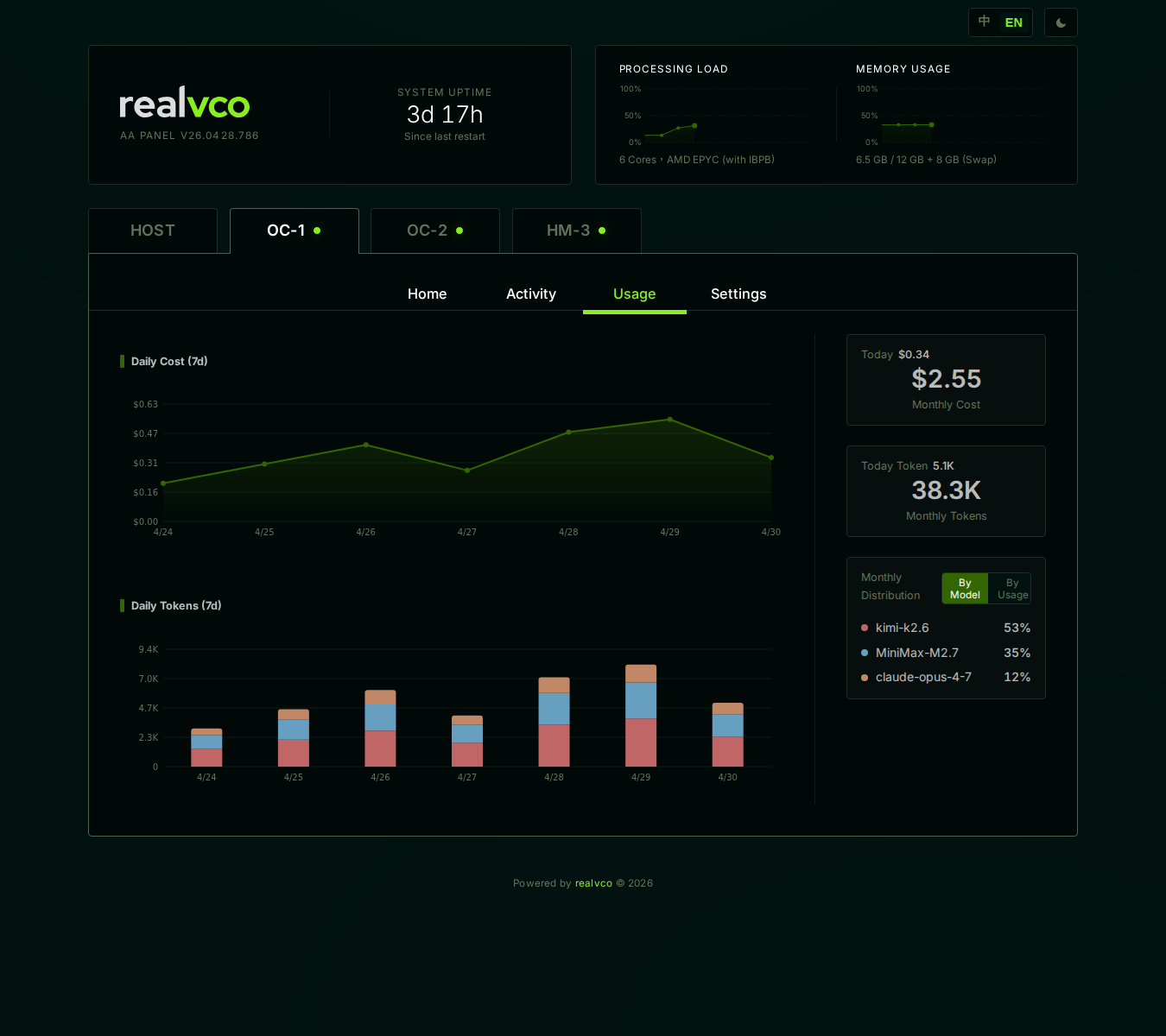
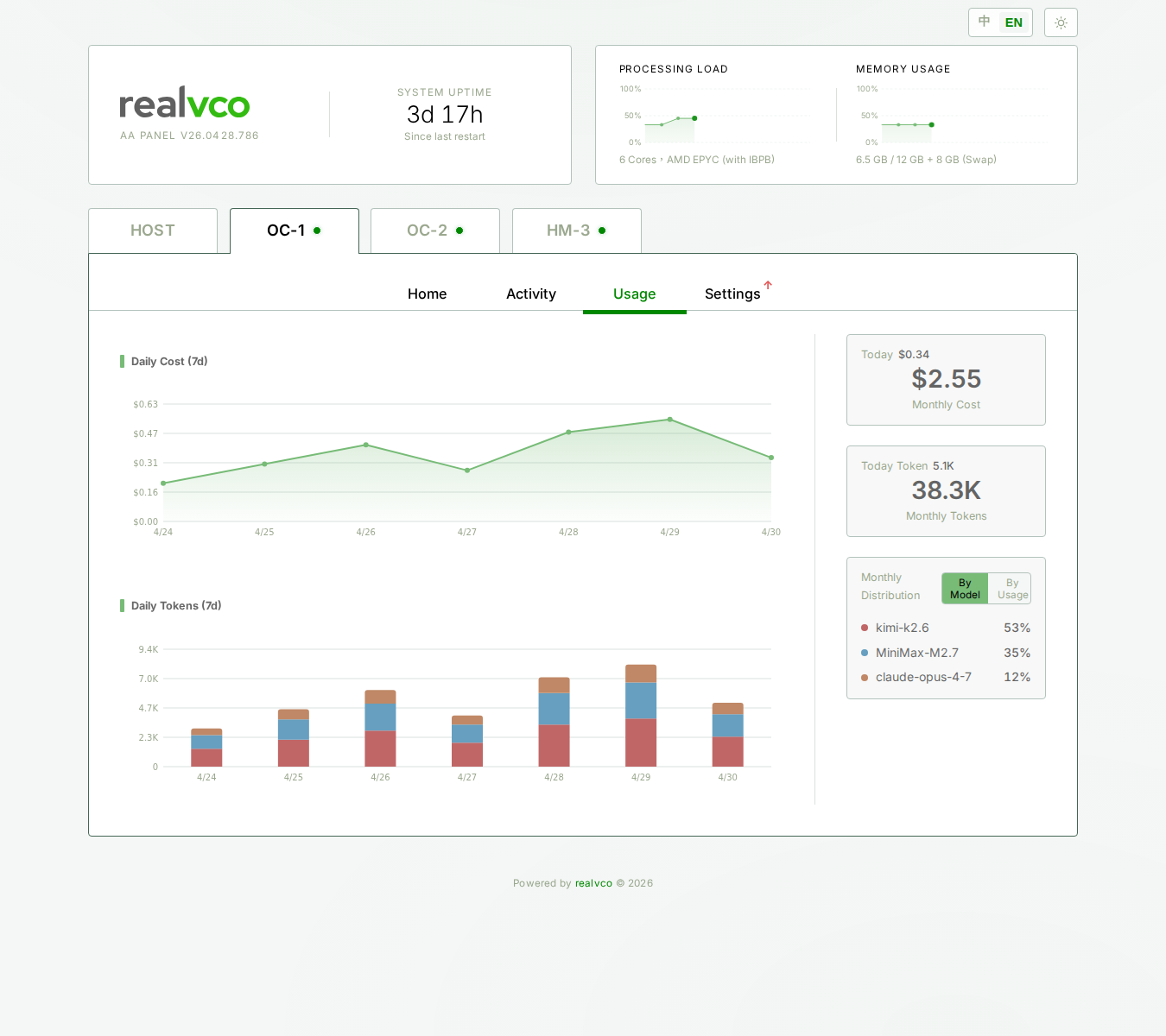
Sections of the Usage page
Top: trend chart
Token usage trend for the last N days (bar or line chart). X-axis is date, Y-axis is token count.
How to read:
- Steady trend = normal use
- Sudden spike = AI might be in a loop, scheduled task issue, or you’re doing heavy chats
- All zero = AI not used (normal)
Middle: breakdown by category
Token counts split by use:
| Category | Example |
|---|---|
| Conversation | Direct user-AI interaction |
| Scheduled Tasks | AI’s autonomous schedules |
| Tool Use | Internal back-and-forth when AI uses tools |
Bottom: cumulative cost
Cumulative USD cost based on current model rates (prompt + completion).
Different models, different cost
OC / HM let you pick different models, and cost differs hugely:
| Model | input/M tokens | output/M tokens | Best for |
|---|---|---|---|
| claude-opus-4-7 | High | High | Complex reasoning, long tasks |
| claude-sonnet-4-6 | Medium | Medium | General chat, balanced |
| kimi-k2.6 | Low | Low | High volume, simple tasks |
| MiniMax-M2.7 | Low | Low | Chinese chat, low latency |
Actual rates per provider’s current pricing. Switching model → token count doesn’t change, but USD cost translation does.
To switch model: go to Settings sub-tab and adjust the model dropdown.
When you see “usage spiking”
Troubleshoot in this order:
- Check Activity sub-tab for recently failed scheduled tasks (AI might be retrying)
- Check recent days’ chats: any unusually long prompts or many interactions
- Check model selection: did you accidentally switch to an expensive model
- Pause + observe: if uncertain, pause for 24 hours and watch the trend chart flatten
Reading the trend chart
| Shape | Usually means |
|---|---|
| Flat baseline + occasional spikes | Normal — spikes are when you do big things |
| Steady climb | Schedules adding up daily, or chats getting longer |
| Sudden cliff | AI was paused or restarted |
| Permanently elevated plateau | Possibly a loop; pause agent to investigate |
Related
- AI Agent tab overview — 4 sub-tab map
- Activity sub-tab — When usage spikes, check what’s running
- Home sub-tab — Where to pause an agent