

Dashboard
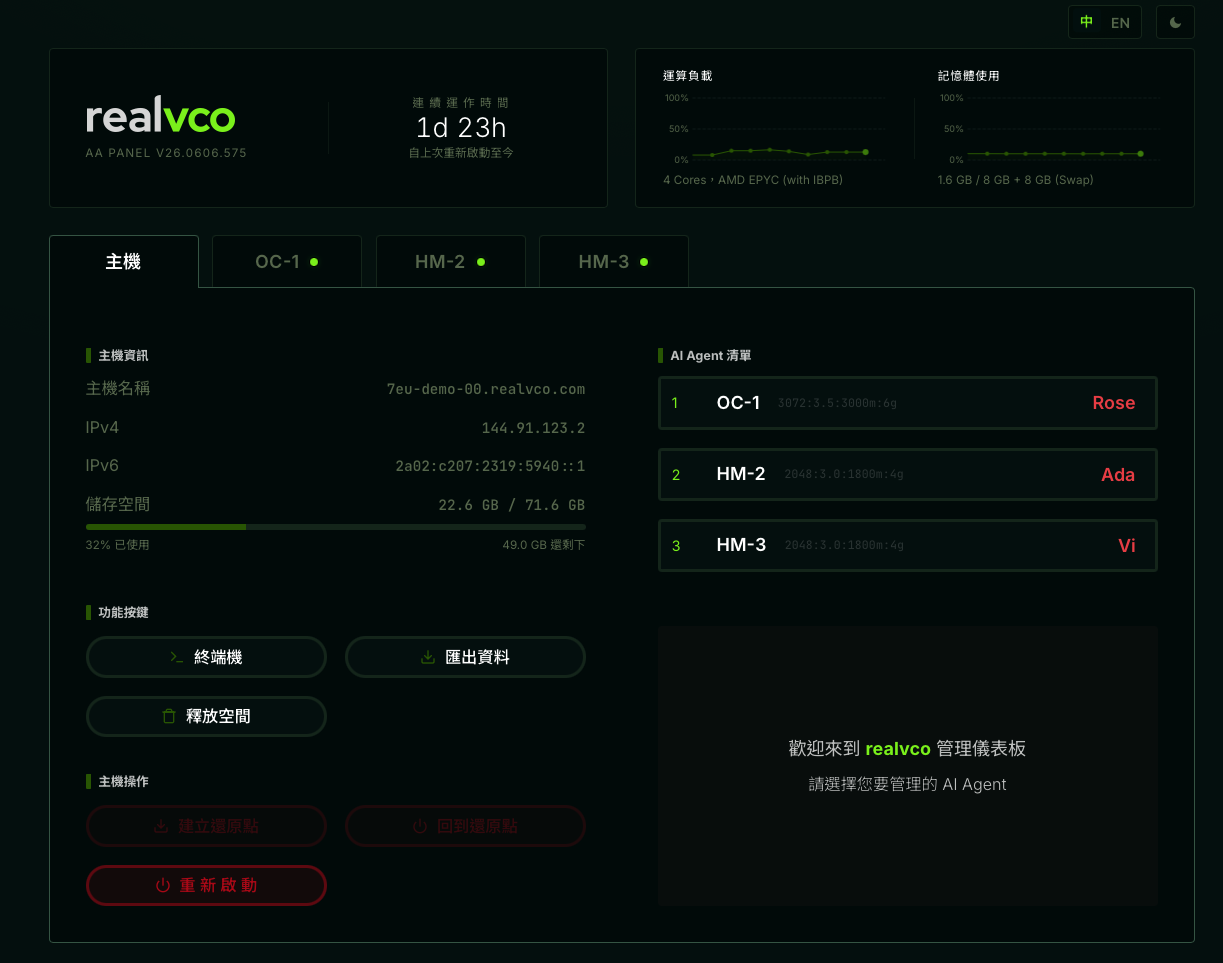
The backend for managing “the host + 3 AI agents”. Enter it from the Member Portal by clicking “Dashboard”. The four tabs at the top switch between Host / OC-1 / HM-2 / HM-3, defaulting to Host.
Top

Uptime (since the last restart); on the right, two live charts: compute load (CPU) and memory usage.
Host info
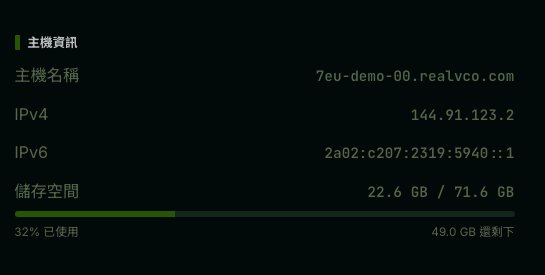
Top-left of the Host tab, showing this machine’s basics: hostname (used for SSH), IPv4 / IPv6 (public IP), and storage (used / total + usage rate).
Action buttons
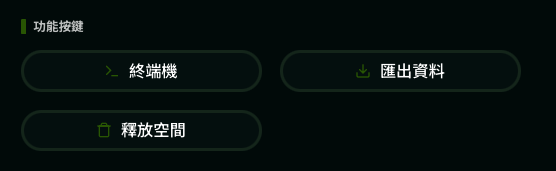
Three live action buttons:
| Button | What it does |
|---|---|
| Terminal | Opens a host root shell in the browser (equivalent to SSH) |
| Export data | Packages and downloads chat history, settings, and user data |
| Free up space | Clears unused Docker images, stopped containers, and temp files (leaves running containers and data untouched) |
⚠️ The terminal has host root privileges; any command takes effect immediately. If you're unsure, don't run it.The terminal and the agent console show a one-time reminder the first time you open them each day — just click Continue.
Host operations
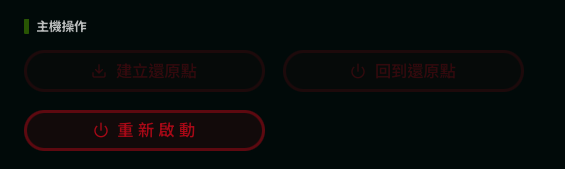
High-risk operations (in red); each pops a confirmation dialog before it runs:
| Button | Function |
|---|---|
| Create restore point | Snapshots the whole host for one-click rollback |
| Roll back to restore point | Restores the whole host to the last snapshot |
| Restart | Reboots the whole VPS |
AI agent list
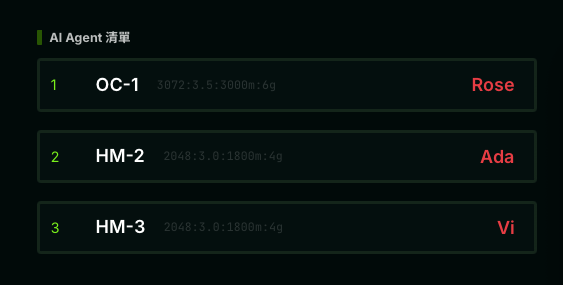
The right column lists the three AI agents; click any row to enter its AI agent tabs.
| Column | Example | Meaning |
|---|---|---|
| Status light + number | 1 (green) | Green = running |
| Container code | OC-1 / HM-2 / HM-3 | OC = OpenClaw, HM = Hermes |
| Resource allocation | 3072:3.5/3000m:6g | CPU quota + memory cap |
| Nickname (red) | Rose / Ada / Vi | The name you gave the agent |
AI agent tabs
Enter from the AI agent list by clicking any agent. Each agent has four sub-tabs with the same layout (only the underlying engine differs): Home / Activity / Usage / Settings.
Home
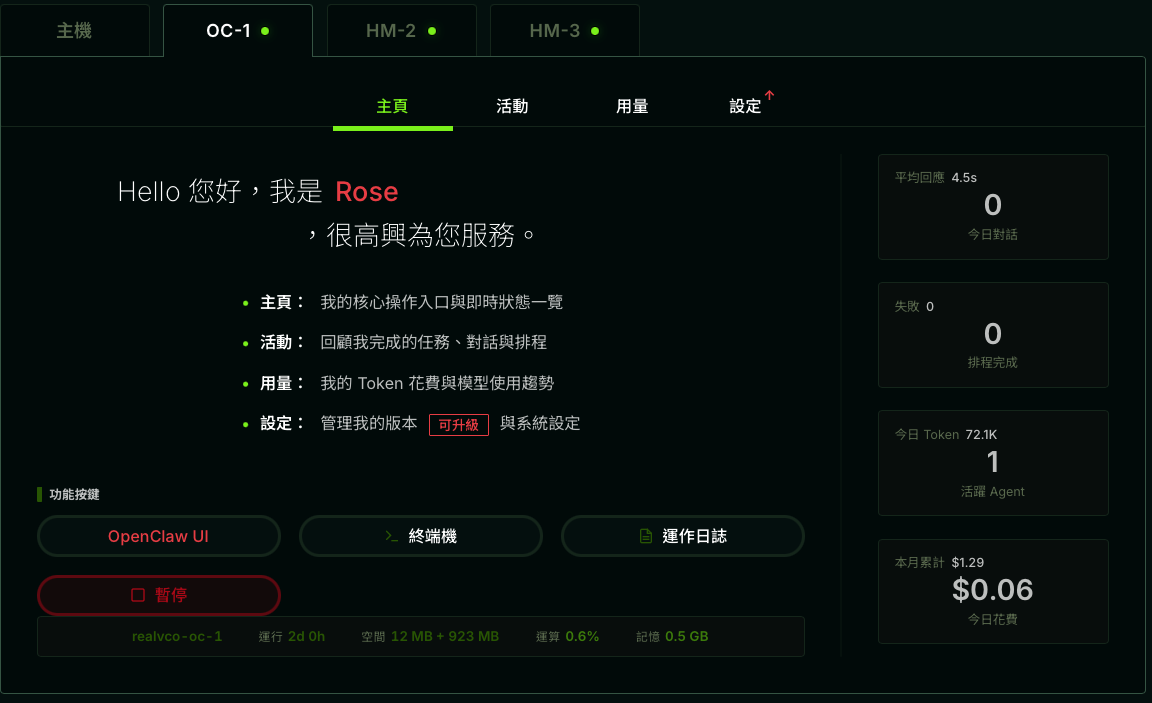
The agent’s main entry point: a greeting, live status cards on the right (avg response, today’s chats, schedules, today’s tokens and spend), and action buttons (OpenClaw UI / Terminal / Logs / Pause).
Activity
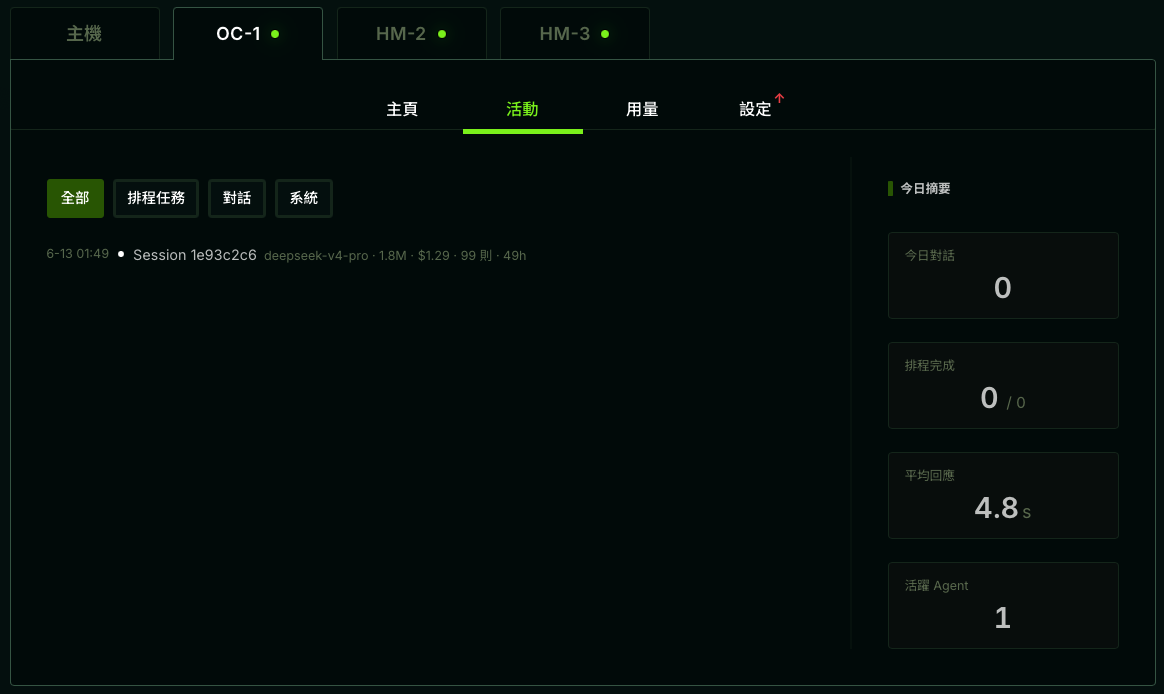
A record of what the agent has done: filter by scheduled task / chat / system; each entry shows the model, tokens, spend, message count, and duration; today’s summary is on the right.
Usage
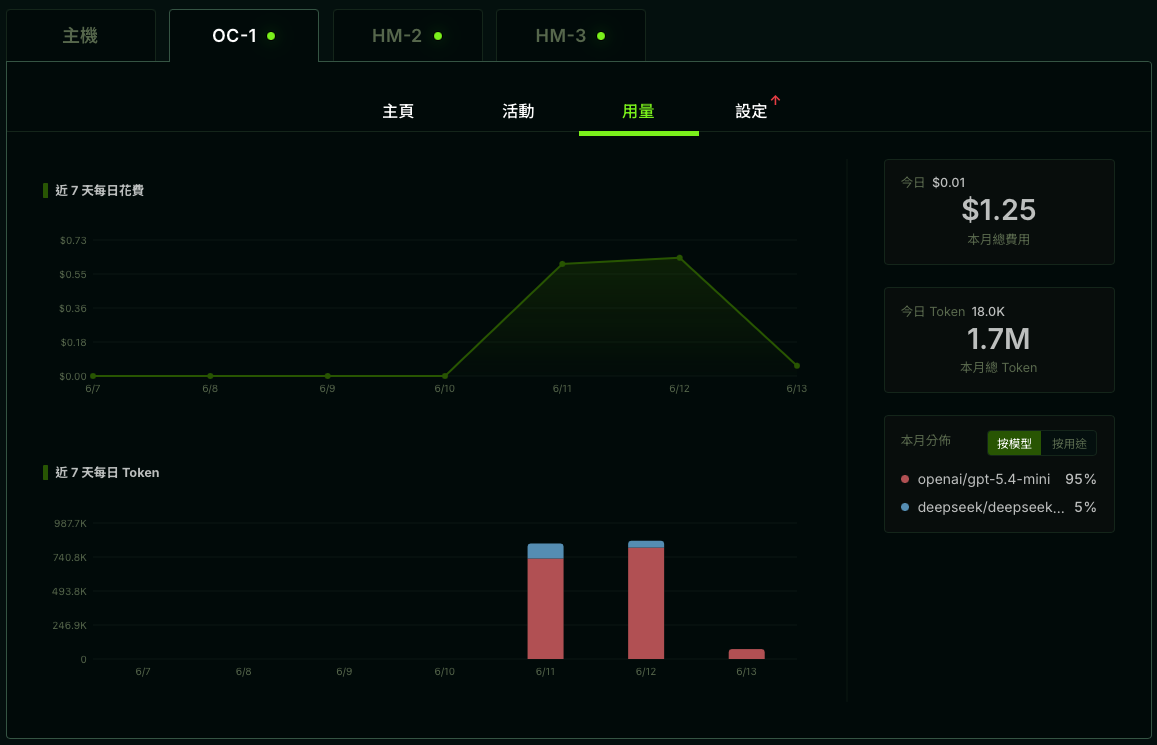
Spend and usage trends: daily spend and token charts for the last 7 days, this month’s total cost and tokens, plus a breakdown by model / by purpose.
Settings
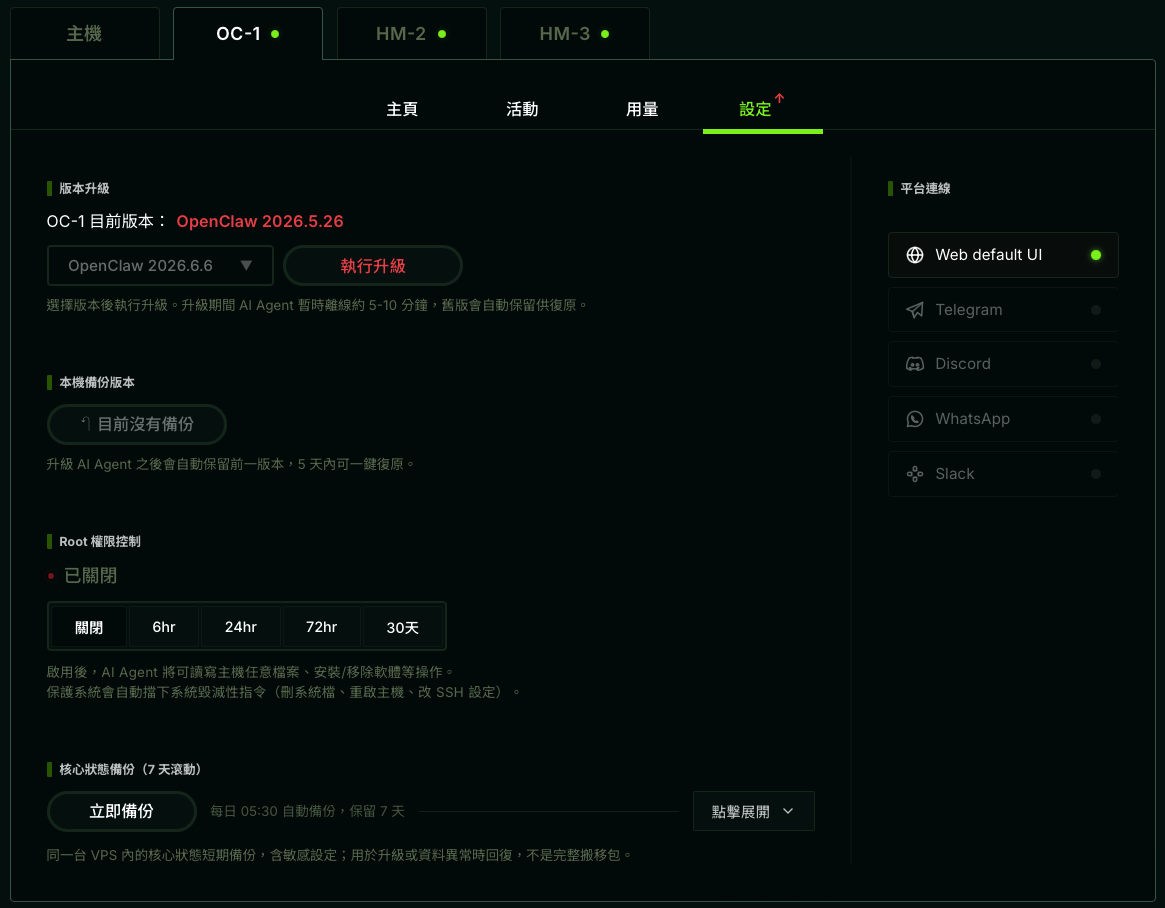
Manage this agent: version upgrade (offline 5–10 min during upgrade, old version kept automatically), local backup, root access control (can be enabled temporarily), core state backup (daily at 05
), and platform connections (Telegram / Discord / WhatsApp / Slack).