

Connect a channel
Connect your AI agent to your messaging app and you can talk to it and assign tasks straight from your phone — no browser needed.
It’s simple: you grab a “key” (token) from the messaging platform, hand it to the agent, and let the agent connect itself for you.
Before connecting, make sure this agent’s brain (LLM) is already set up. The last step asks the agent to finish the connection, and it can’t act without a brain. If you haven’t set it up, go back to Set up the LLM first.
realvco’s recommendation: Telegram or WhatsApp
These two are the most stable, easiest to set up, and have the widest reach — most users pick one.
- Telegram — fastest to set up and completely free; just create a bot, grab its token, and connect. Best for a first try. Download / open → telegram.org
- WhatsApp — the widest reach with friends and customers, common for business and outreach (connection guide coming soon). Download / open → whatsapp.com
For now, start with Telegram — it’s the quickest. The WhatsApp guide will open up once it’s ready.
Connect guide
The two sections below walk you through connecting. Click any item to jump straight to its steps and video:
- Connect Telegram
- Connect WhatsApp (coming soon)
Connect Telegram
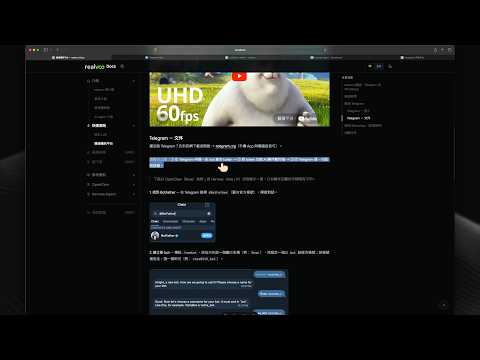
Telegram - Video
Telegram - Steps
Don’t have Telegram yet? Download or open it first → telegram.org (mobile app and desktop both work).
The flow has three parts: ① create a bot in Telegram and get its token → ② hand the token to your AI agent to connect → ③ go back to Telegram to do a one-time pairing.
The example below uses OpenClaw (Rose); with Hermes (Ada / Vi) the flow is nearly identical — only the agent’s wording differs slightly.
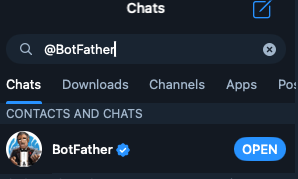
1. Find BotFather — in Telegram, search for @BotFather (the blue-check official account) and open the chat.
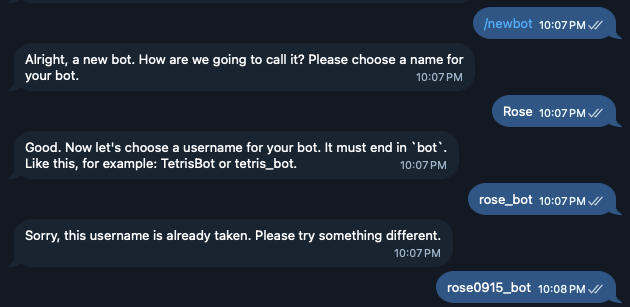
2. Create a new bot — send /newbot, follow the prompts to pick a display name (e.g. Rose), then set a username ending in bot; if it’s taken, just pick another (e.g. rose0915_bot).
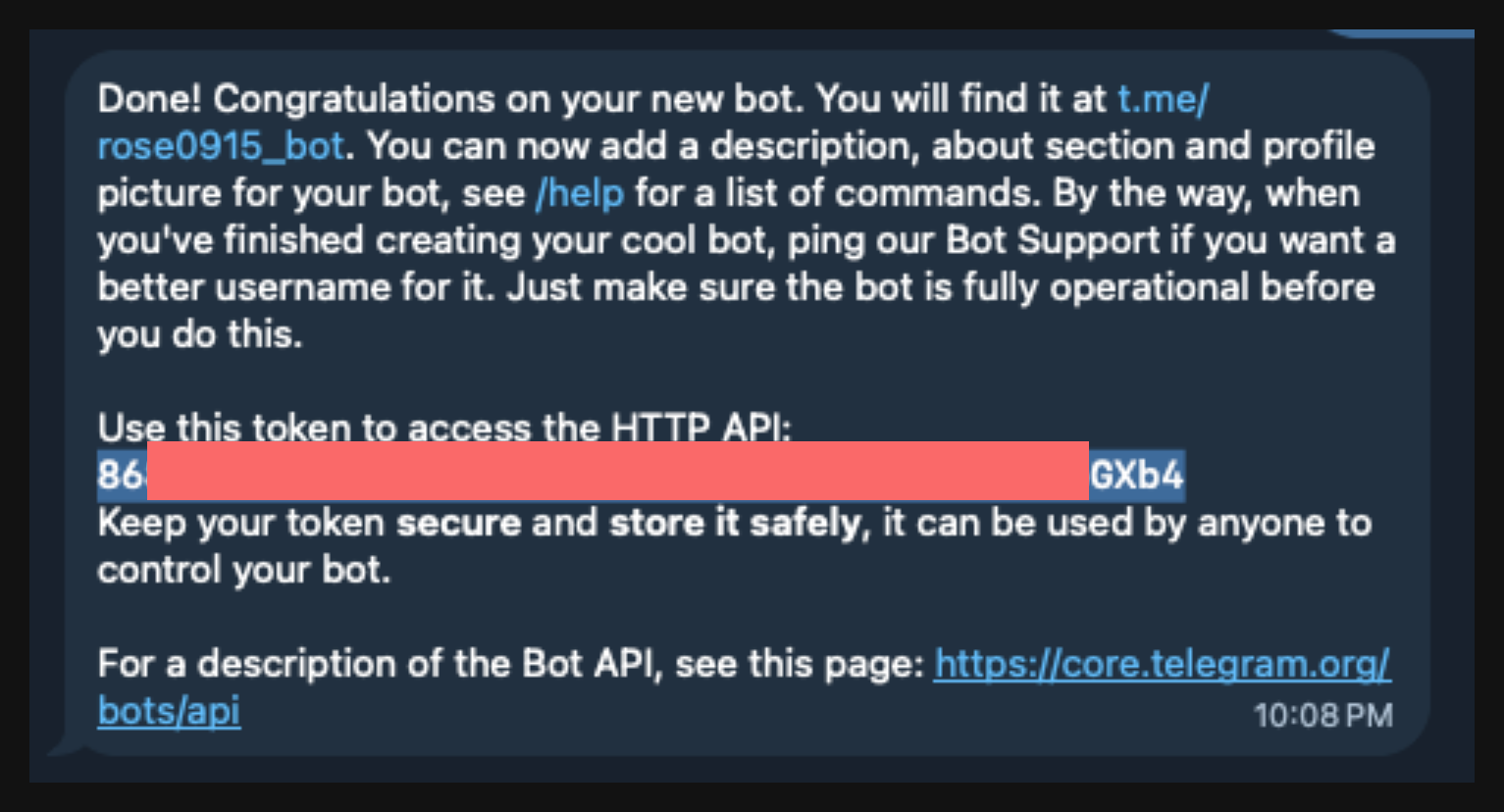
3. Copy the token — once created, BotFather gives you a token (the string under Use this token to access the HTTP API:). This is your connection key — copy it.
This token is your bot’s password. Don’t post it anywhere public or send it to anyone you don’t trust. Give it only to your own AI agent.
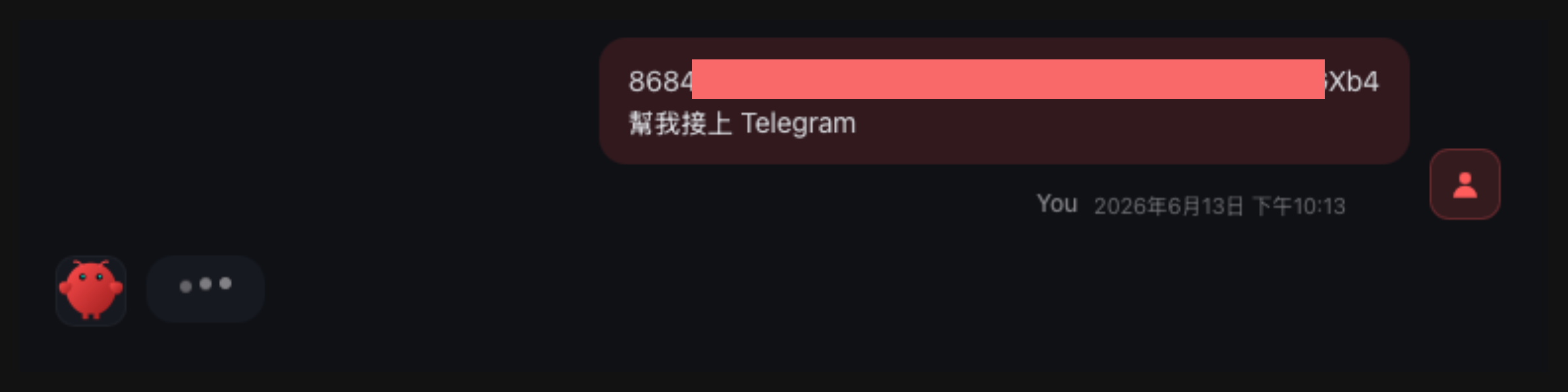
4. Hand the token to your agent — open the chat of an agent whose LLM is already set up (Rose via OpenClaw UI, Ada / Vi via Hermes UI), paste the token, and say “connect me to Telegram”.
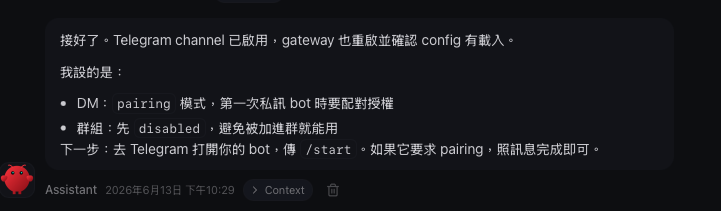
5. The agent finishes setup — the agent replies “done” and tells you the next step: open your bot in Telegram, send /start, and complete the pairing if asked.
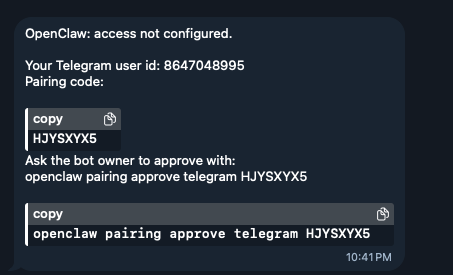
6. Get the pairing code in Telegram — back in Telegram, message your bot; it replies with a pairing code and an authorization command (like openclaw pairing approve telegram XXXXXXXX). Copy that command.
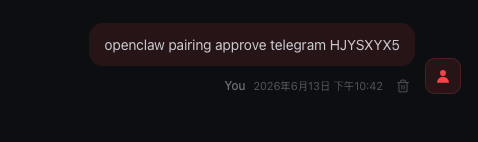
7. Paste the authorization command back to the agent — paste the command you just copied into the agent’s chat and send it to complete pairing.
8. Done — when Telegram shows ✅ access approved, you’re connected — just chat with the agent in Telegram.

Connect WhatsApp (coming soon)
The WhatsApp connection guide is not published yet — coming soon. For now, use Connect Telegram; it’s the fastest and completely free.